Graphics settings, explained: what to turn down first
What each group of settings does, what it costs and the order in which to change them.

Open the graphics menu of a new game and you find 30 settings with names like "ambient occlusion" and "anisotropic filtering". Most guides tell you to copy a list. This guide explains what each group of settings does, how much speed it costs and what to turn down first when your game does not run well.
We measured every number in this article on a mid-range PC in five new games.
First, know your target
Before you change anything, decide what you want. There are two numbers.
Frames per second. This is how many pictures the PC draws each second. 30 is playable. 60 is smooth. Above 100 is a real advantage only in fast online games.
Resolution. This is how many pixels are in each picture. More pixels are sharper and slower. 1440p has 78 percent more pixels than 1080p, and 4K has four times as many.
Choose the frame rate first. A steady 60 looks better than a rate that jumps between 50 and 90. Then turn settings down until you reach it.
The settings that cost the most
These are the four settings to look at first. Each can change your frame rate by 15 percent or more.
Ray tracing
Ray tracing draws light, shadows and reflections by following the path of light. It looks wonderful in some games and makes almost no difference in others. It costs between 25 and 50 percent of your frame rate. If you need speed, turn it off first.
Shadows
Shadow quality changes how sharp shadows are and how far away they are drawn. The step from Ultra to High gives about 8 percent more speed, and most people cannot see the difference while they play.
Volumetric effects
This setting draws fog, smoke and beams of light. From Ultra to Medium gives 10 to 15 percent. At Medium, the fog is a little less smooth.
Resolution and upscaling
Upscaling draws the game at a lower resolution and then uses a smart filter to fill in the detail. At the Quality setting, it gives 30 to 40 percent more speed, and at 1440p or higher the picture is very close to the original. This is the best trade in the whole menu.

The settings that cost almost nothing
You can leave these at the highest level on any PC from the last five years.
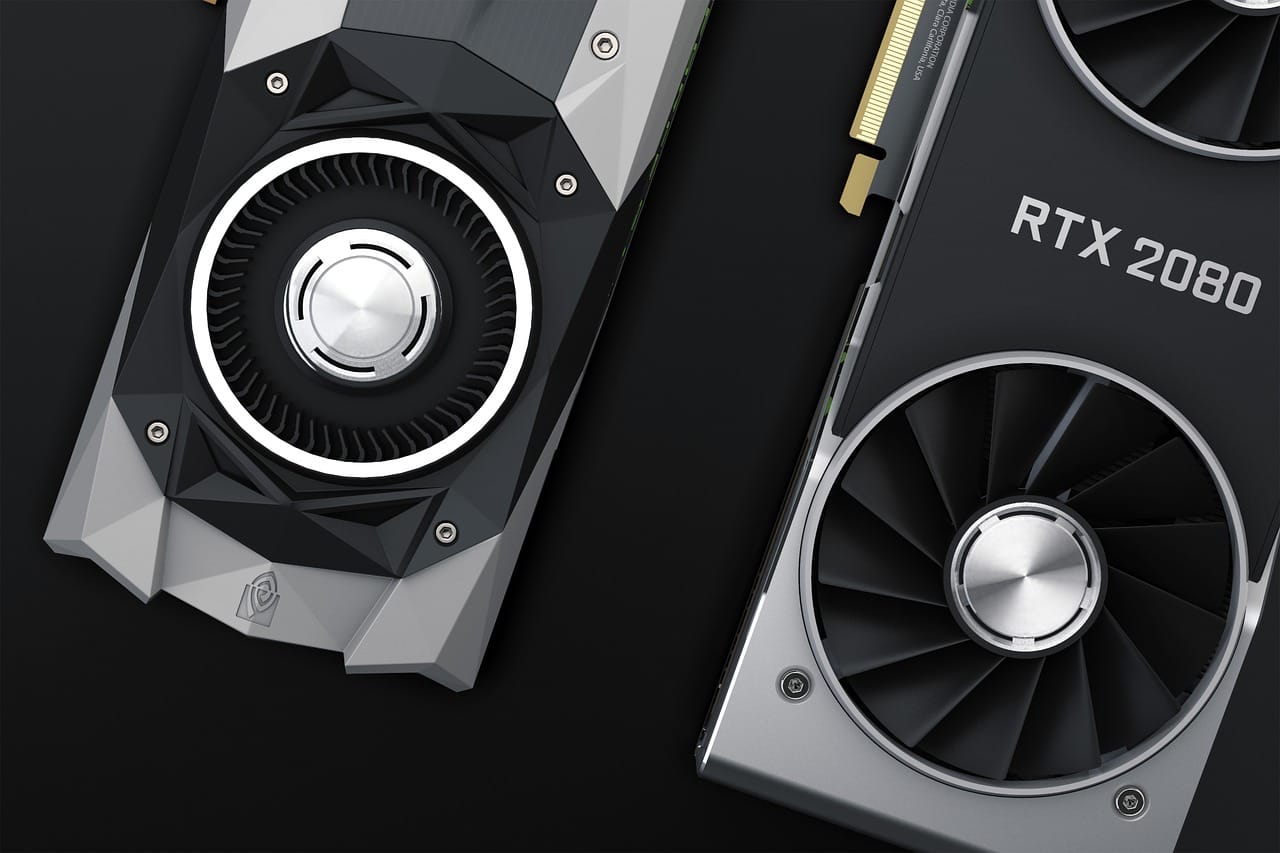
- Texture quality. It needs memory on the graphics card, not speed. If your card has 8 GB or more, use High. With 12 GB or more, use Ultra.
- Anisotropic filtering. It keeps the ground sharp at a distance. Set it to 16x. The cost is under one percent.
- Character detail and object detail. The cost is two to three percent.
The settings that are a question of taste
These settings do not make a game faster or slower. They change how it looks, and many players turn them off.
| Setting | What it does | Our advice |
|---|---|---|
| Motion blur | Blurs the picture when the camera turns | Off |
| Film grain | Adds noise like old film | Off |
| Chromatic aberration | Adds coloured edges, like a cheap lens | Off |
| Depth of field | Blurs the background | On in story games, off in online games |
| Field of view | How wide you see | 90 to 100 on a monitor |
Turn off motion blur before you do anything else. You paid for a sharp picture.
Dex Okafor
The order: what to turn down first
If your game is too slow, change one thing at a time, in this order, and test after each step.
- Turn ray tracing off
- Set upscaling to Quality
- Shadows from Ultra to High
- Volumetric effects to Medium
- Reflections to Medium
- Upscaling from Quality to Balanced
- Only now, lower the resolution
In our tests, the first four steps took a game from 41 to 78 frames per second. We could see a difference in pictures placed side by side. We could not see it while we played.
| Step | Frames per second | Gain |
|---|---|---|
| Everything on Ultra, with ray tracing | 41 | |
| Ray tracing off | 58 | +41% |
| Upscaling on Quality | 71 | +22% |
| Shadows on High | 75 | +6% |
| Volumetric effects on Medium | 78 | +4% |
Two settings outside the game
The refresh rate of the monitor. A monitor that can show 144 pictures a second often starts at 60. Open the display settings of your system and check.
Variable refresh rate. If your monitor supports it, turn it on in the monitor's own menu and in the driver of the graphics card. The monitor then waits for each picture from the PC. A game at 52 frames per second looks smooth, with no torn lines.
The short version
Turn ray tracing off, turn upscaling on, put shadows on High and fog on Medium. Leave textures as high as your card allows. Turn off motion blur. That is 90 percent of what a settings menu can do for you.